Test Your Online Booking Page: Two Customers, One Last Slot
Using a sandbox or staff-controlled test slot that real customers cannot claim, run this test before two real customers collide on the same appointment: load…
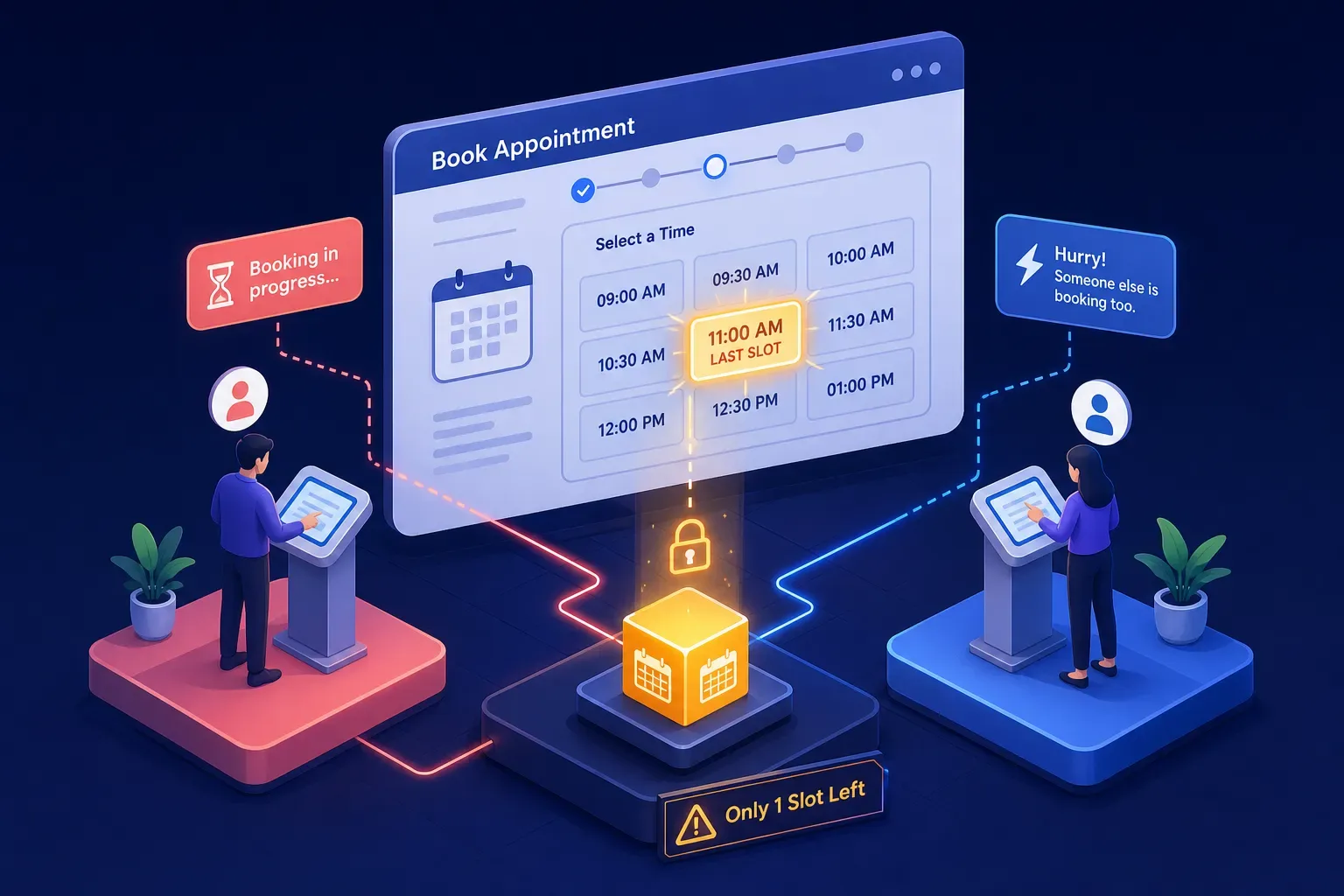
Using a sandbox or staff-controlled test slot that real customers cannot claim, run this test before two real customers collide on the same appointment: load your online booking page on two separate devices, navigate both to the same open slot, and submit simultaneously. What happens next tells you whether your scheduling page holds up under real conditions or just looks like it does. This article gives you five specific scenarios to run, a pass/fail standard for each, and a decision on when to pull the page offline while you sort it out.
An online booking page that displays available times correctly can still fail when two customers reach the final step at the same moment. The page shows a snapshot of availability from the moment it loaded, not a live lock on that slot. The calendar record doesn't exist until the customer submits and the system commits the booking. That gap is where the problem lives.
This is an owner-run acceptance test, not a claim that any specific scheduling software guarantees no double bookings. Before you trust your appointment booking software to feed overnight submissions into any system watching your shop's activity, including any proposed Maximus integration whose behavior you have verified, you need to know the booking layer holds up under pressure.
Key takeaways
-
Display is not a hold: Selecting a time on your scheduling page doesn't reserve it. In most online booking systems, the slot is only locked when the system commits the booking at submission, though some platforms implement a short-lived temporary hold while the customer completes checkout. Know which behavior your platform uses.
-
Two types of booking exist: A confirmed booking writes one record to the calendar; an appointment request is still pending. Know which one your page uses.
-
Run five scenarios: Simultaneous submission, stale page, double-click, timeout, and mobile load are the five conditions that expose real race condition risk.
-
Use a test slot only: Pick a date and time that won't be dispatched, brief your team, and block it after testing is complete.
-
One fail row warrants action: Any scenario that produces a double booking means you should take the page offline or redirect to a contact form before the next customer-facing day, and contact your vendor before going back live.
Why showing a time slot isn't the same as holding it
When a customer picks an available time on your appointment scheduling page, the selected state alone does not prove the slot is reserved. Some platforms create a temporary hold; others only reserve at final submission. Ask your vendor which behavior applies and how holds expire.
The calendar record gets written at the moment of submission, when the system commits the booking. That means two customers can independently reach the final confirmation step having both selected the same time, with both pages showing it as available, because both pages loaded before either booking was submitted. Some platforms address this with a short-lived temporary hold or reservation token while a customer completes checkout, but that behavior isn't universal. If you used a booking page builder or a third-party widget, verify whether your specific setup creates any hold before final submission.
At the moment of commit, a well-built online booking system rechecks whether the slot is still open rather than trusting what the customer selected earlier. If two customers submit simultaneously, one booking should succeed and the other should be rejected with a clear message. The system also needs to handle a duplicate submission from the same customer, whether that's a double-click, a back-button resubmit, or a retry after a slow connection, without creating two records for one job.
There's also a meaningful operational distinction worth knowing before you run any test. A confirmed booking means the system verified availability, accepted the appointment, and wrote one record to the calendar. An appointment request means the system received a customer's preference but hasn't committed the slot; your staff still approves it manually. If your booking page uses requests rather than confirmed bookings, the race condition risk doesn't disappear. It shifts to your manual review process, and that's a different problem to solve.
How to set up this online booking page test without affecting real customers
You need two separate devices: a phone and a laptop work well, or two phones on different networks. Log into each as two different test customers using email addresses and phone numbers you control. You'll be inspecting every confirmation message and calendar entry that comes out of the test, so use contact details you can access immediately.
Pick a specific date and time slot that you and your staff have agreed will not be dispatched. Get that in writing, in your team messaging tool, before you start. Brief your dispatcher so no tech responds to anything that looks like a job booking in that window. The test slot should be the last available opening for that day or technician. You're testing scarcity conditions, not whether the booking page works when there are ten open slots.
One rule protects your customers: never run this test against a slot that a real customer could claim. If your booking software has a sandbox or demo environment, use it. If not, ask the vendor for a private test calendar or a restricted test route that real customers cannot access. A quiet period alone does not isolate the test. Brief staff, prevent dispatch and charges, and close the test slot afterward.
Five scenarios to test your online booking page and what to inspect
Scenario 1: Simultaneous submission
Both devices load the reservation page, navigate to the same test slot, and submit within seconds of each other. One device should receive a clear booking confirmation. The other should receive a message that the slot is no longer available, with current alternatives or a callback option. Check your calendar immediately: you should find one entry, not two, and clear customer-facing outcomes: one confirmed booking and one unavailability message. If both customers get a confirmation, that's a fail.
Scenario 2: Page left open with stale availability
One device loads the booking page and stays on the time-selection screen for 15 to 20 minutes without submitting. During that window, the second device books the same slot. Then the first device submits. The system should recheck availability at commit, find the slot gone, and return a clear unavailability message rather than accepting the booking. The calendar should show only the second device's entry. If the system accepts the stale submission and creates a second booking, that's a fail.
Scenario 3: Double-click and back-button resubmit
On one device, submit the booking form and immediately click submit again to simulate a double-click. Separately, submit the form, hit back, and resubmit. The system should produce one calendar entry regardless of how many times the form was submitted. Check the test contact's inbox: one confirmation email, not multiple. If multiple calendar entries appear or the customer receives more than one confirmation, that's a fail.
Scenario 4: Timeout or dropped connection
Submit on a slow network or cut the connection immediately after hitting submit. Note exactly what the page shows: a success message, an error, or an ambiguous waiting state. Then check your calendar to see whether a booking record exists, and check whether a confirmation email was sent. The page should communicate clearly whether the booking succeeded or failed. If the page shows an uncertain state, it should guide the customer to verify, not leave them guessing. Before any retry, reconcile the authoritative calendar record and confirmation status. A booking that cannot be reconciled or communicated clearly is a fail. An ambiguous page that gives the customer no path forward is also a fail.
Scenario 5: Mobile load and submit
Repeat scenarios 1 and 3 using only mobile devices. Booking widgets that behave correctly on desktop can break on mobile due to display sizing, button overlap, or slow asset loading. Confirm that the form is fully usable, that the submit button is accessible and responsive, and that confirmation messages arrive. A booking page that works on a laptop but produces duplicate submissions or fails silently on a phone is still a failed booking page.
Callback fallback test
After a test slot is taken, submit a callback request from the other test customer. Verify that it creates one request assigned to the responsible staff member, displays the stated response window, and does not create a confirmed appointment. Have staff acknowledge the test request through the normal workflow. An unassigned request, a false booking confirmation, or no clear response expectation fails this check.
What the customer who didn't get the slot must see
The losing customer needs a plain, honest statement that the time they selected is no longer available. Not a vague error. Not a spinning loader. Not a confirmation that turns out to be wrong. The message should tell them clearly that the booking was not completed and that the slot was taken before their submission went through.
After the message, the page should do one of two things. Show the next available times as one-click alternatives so the customer can rebook without starting over, or present a callback request form with a direct path to your office. Both options are legitimate, but the callback option only holds up if someone in your shop is actually responsible for responding to it. A callback request sitting in a queue with no assigned owner is a missed customer, not a fallback plan.
Assign a specific person or shift to review callback requests from your online booking page. Set a realistic response expectation your staffing can actually support: same business day, within two hours during office hours, or a specific window. Do not publish a guaranteed callback time unless you are staffed to honor it without exception.
Your test worksheet and when to pause the page
Fill this in after each scenario. Any fail row means you contact your booking software vendor before the page goes back to live customers.
For each scenario, record:
- Scenario and test time
- Devices and test contacts used
- Authoritative calendar records found
- Confirmation messages sent
- Message shown to the customer who did not get the slot
- Callback owner and stated response window, where applicable
- Pass/fail result and follow-up action
If scenario 1 or scenario 2 produces a double booking in your test, take your online booking page offline or redirect your booking link to a simple contact form or your office phone number while you get answers from your vendor. Pausing is not a permanent fix. It's a responsible hold while you determine whether the failure reflects a configuration issue you can resolve or a platform limitation you need to work around. Once your vendor has addressed the issue, test again before going live.
Fitting this test into your shop's workflow
This test isn't a one-time event. Run it before you go live with a new online booking page, after you switch scheduling platforms, when you add a technician calendar, or when you expand your service hours. Keep your completed worksheet on file. When you contact your booking software vendor, showing them exactly which scenario failed and what the system produced moves the conversation faster than "I think I might have a double-booking problem."
The booking page is one piece of a larger system. Overnight bookings that drop into your calendar while you're asleep need to connect cleanly to how your morning starts, how your dispatcher gets briefed, and how follow-up gets handled. That's the kind of workflow review we work through with shop owners at Maximus, operator to operator. If you want to talk through how your online booking page connects to the rest of your shop's call-handling and morning briefing, reach out and we'll get into it.
Frequently Asked Questions
How often should I run this two-device booking test?
Run this test whenever the booking page goes live or changes: before you publish a new page, after switching scheduling platforms, when adding a technician calendar, or when you expand service hours. Keep the completed worksheet on file and repeat tests whenever configuration or staff workflow changes occur so you can show exactly which scenario failed if you need vendor help.
Can I run the test in a sandbox or demo environment instead of my live page?
Yes, use a sandbox or demo environment if your booking software provides one. If a sandbox is not available, ask for a private test calendar or restricted route real customers cannot access, brief dispatchers, and close the test slot afterward. A quiet period alone is not isolation.
What exact steps should I take if a scenario produces a double booking?
If any scenario produces a double booking, take the online booking page offline or redirect the booking link to a contact form or your office phone number and contact your booking software vendor before going back live. Treat the pause as a responsible temporary hold while you determine whether the failure is a configurable issue you can fix or a platform limitation requiring a workaround, then retest after the vendor addresses it.
Who should handle callback requests that the losing customer can submit, and what response time should I promise?
Assign a specific person or shift to review callback requests and set a realistic response expectation your staffing can actually support. Offer a concrete window you can meet - same business day or within two hours during office hours - rather than a guaranteed time you might miss, because an unassigned or unanswered callback is a missed customer.